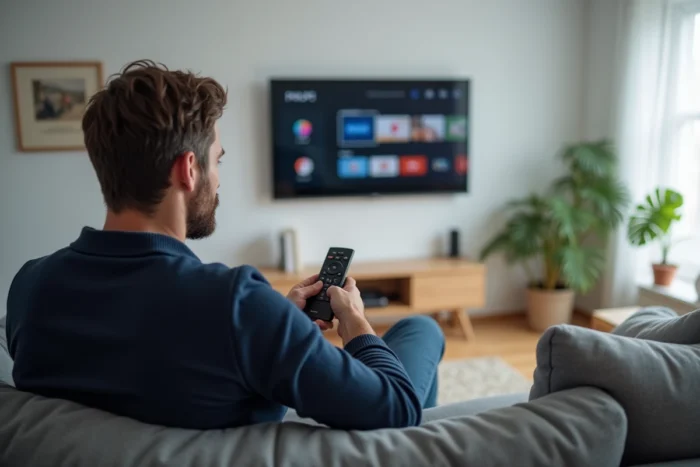
Recent Philips televisions come with two distinct systems, Android TV and Google TV, which handle the installation of IPTV applications differently. Understanding this distinction before any manipulation avoids mistakes and application incompatibilities.
Google TV or Android TV on Philips: direct impact on IPTV installation
Since the gradual transition to Google TV, Philips models released after 2022 no longer all use the same environment. The difference is not limited to the visual interface: it changes the location of menus, sideloading policy, and the management of permissions granted to IPTV players.
On Android TV (versions 8.x to 11), access to unknown sources is found in Settings > Security & Restrictions. The user simply enables the option for each application allowed to install third-party APKs. The process remains transparent.
On Google TV (version 12 and above), this setting is buried in Settings > System > About > Build Android (multiple taps to enable developer mode), then back to Settings > Apps > Security. We recommend checking the exact version of the system via Settings > About before any installation attempt. The procedure to find out how to use IPTV on Philips TV directly depends on this prior verification.
The models in the 8897 series (PUS8897) run on Android TV, while the recent 8100 series operates on Google TV. The serial number is not always enough to determine: only the About menu provides a reliable answer.
IPTV streaming protocols and Philips codec compatibility
The choice of IPTV player affects stream stability on Philips, more so than on other brands. The MediaTek SoCs embedded in most Philips ranges manage hardware decoding variably depending on the codec used.
A stream in H.264 (AVC) passes without difficulty on all Android TV and Google TV models. However, high-bitrate H.265 (HEVC) streams can cause micro-cuts on entry-level series, where the hardware decoder saturates beyond a certain bitrate.
- The M3U and Xtream Codes API playlist formats are supported by almost all players available on the Play Store (IPTV Smarters, TiviMate, OTT Navigator).
- The TS (Transport Stream) container remains the most reliable on Philips, whereas MKV encapsulating HEVC can generate audio desynchronizations.
- The EPG in XMLTV format loads correctly as long as the playlist does not exceed a few thousand channels, or else notable slowdowns of the interface may occur.
We observe that TiviMate offers the best compromise between EPG customization and stream error management on Philips under Google TV. IPTV Smarters remains simpler to configure for basic use.
Sideloading APK on Philips: reliable method without USB key
When an IPTV player is not available on your TV’s Google Play Store (due to geographical restrictions or Google’s policy), sideloading becomes the only option. On Philips, the most stable method is through the Send Files to TV app, available on the Play Store without restrictions.
Install Send Files to TV on the television and on a smartphone or PC connected to the same Wi-Fi network. Transfer the APK file of the desired player. On the television, open the received file via a file manager (File Commander, pre-installed on some Philips models).
The USB key alternative works, but the USB ports of recent Philips models are sometimes limited in voltage, causing random disconnections during the transfer of large files. Network transfer eliminates this problem.
Post-installation permissions to check
After installing a third-party APK, go to Settings > Apps > [app name] > Permissions. Explicitly enable access to storage and local network, otherwise the player will not be able to load the playlist or cache channel logos.
IPTV stream blocks in France: what happens on the television side
Sudden black screens during a match or live show are not always a bandwidth issue. Arcom has deployed mechanisms for real-time blocking of unauthorized IPTV streams, capable of cutting a signal during broadcasting.
On the user side, this translates into several symptoms on a Philips Smart TV:
- The stream freezes and then displays a black screen, without any error message from the player.
- Changing the server in the app does not resolve anything, as the block operates at the DNS or IP level with the ISP.
- ISPs like Orange, SFR, and Bouygues Telecom apply these blocks, and discussions are ongoing at the European level regarding potential collateral damage to legitimate services.
These interruptions have nothing to do with the television’s configuration. No network setting, no DNS change on the Philips bypasses a block implemented upstream by the operator. Only legal IPTV services (Molotov, myCanal, Pluto TV) guarantee a continuous stream without the risk of regulatory cuts.
Network optimization for stable IPTV streaming on Philips
A wired Ethernet connection remains preferable to Wi-Fi for IPTV on Philips. The Wi-Fi modules integrated into mid-range series poorly handle prolonged peak bandwidth, typical of live streaming.
If an Ethernet cable is not feasible, prioritize the 5 GHz band of the router and disable automatic band steering. On the television, in Settings > Network > Wi-Fi, manually select the 5 GHz SSID. Philips under Google TV also offers a “low latency” mode in the advanced network settings, useful for reducing initial buffering.
The buffer size in the IPTV player deserves adjustment. On TiviMate, a buffer of a few seconds is sufficient for a stable stream. Excessively increasing this value causes increasing audio/video lag on the MediaTek SoCs of Philips.
Lastly, a point often overlooked: the cache of the IPTV player gradually fills up and eventually degrades performance. Periodic cleaning via Settings > Apps > [player] > Clear cache maintains smoothness over the long term.